How to Create Realistic Figurine Images with Nano Banana on Diffus.me
By Kelly
Nano Banana is an AI image generation tool, and we had built it into Diffus.me.
It’s designed to create highly detailed and realistic images — including lifelike 1/6 scale collectible figurines based on your characters.
This tutorial shows you exactly how to generate a realistic figurine scene using a prompt like this:
Create a 1/6 scale commercialized figurine of the characters in the picture, in a realistic style, in a real environment. The figurine is placed on a computer desk... (Full prompt will be given later)
Step 1: Open Nano Banana
- Go to https://diffus.me in your browser.
- Log in or create a free account.
- On the homepage, find Tools.
- Click “Nano Banana Image Editor” to enter the generation interface.(https://www.diffus.me/tools/nano-banana-image-editor)
You’ll see a text box for prompts, options to upload image, and buttons to generate results.
Step 2: Upload a Reference Image
If you already have an image of your characters, upload it.
- Click Upload Image, you can upload up to 4 pics.
- Choose a clear image showing the character’s full body.
- Good lighting and clean backgrounds help the AI understand the design.
Step 3: Paste the Prompt 🌟
Copy and paste your full prompt into the text box:
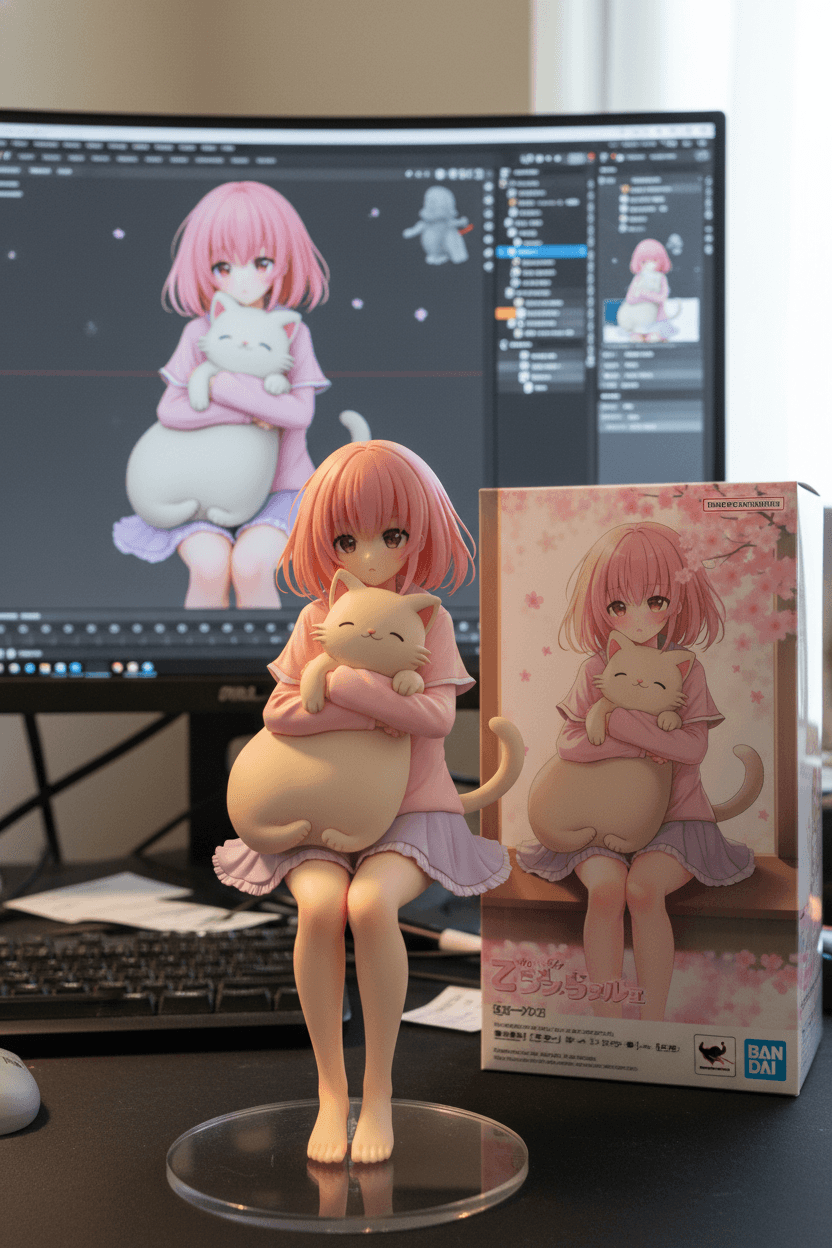
Create a 1/6 scale commercialized figurine of the characters in the picture, in a realistic style, in a real environment. The figurine is placed on a computer desk. The figurine has a round transparent acrylic base, with no text on the base. The content on the computer screen is the ZBrush modeling process of this figurine. Next to the computer screen is a BANDAl-style toy packaging box printed with the original artwork. The packaging features two-dimensional flat illustrations. Illuminated by soft indoor light (mix of desk lamp and natural window light) for realistic shadows and highlights, macro photography style, high resolution, sharp focus on the figure.
(Choosing Text to Image or Image to Image are both OK.)
💡 Prompt Optimization:
When using the above prompt directly, the AI may interpret “ZBrush modeling process” as a black-and-white wireframe diagram. If you want the computer screen to display a 3D model with full color and intricate details (as shown in the example image), you can change this sentence in the prompt:
“The content on the computer screen is the ZBrush modeling process of this figurine.”
to:
“The computer screen shows the ZBrush modeling process of the figurine, displaying a fully colored and textured 3D render of the figurine. The render is clear.”
Step 4: Generate the Image
- Double-check your prompt and settings.
- Click Generate.
- Wait for about 30–60 seconds.
- Your result will appear below.
You should now see your figurine on a computer desk, with:
- A clear acrylic base
- A realistic environment and lighting
- The ZBrush modeling scene on the monitor
- A Bandai-style box with the character’s illustration

Step 5: Refine Your Result
If you want small changes, you don’t need to start over.
You can add simple edit prompts like:
- “Make the lighting warmer.”
- “Add more realistic shadows.”
- “Keep the same pose but show a side view.”
- “Add soft reflection on the acrylic base.”
Nano Banana understands plain English edits — just type them in and click Generate.
Step 6: Save Your Image
When you’re happy with the result:
- Click Download.
- If you really like your generated image, you can upload it to the Diffus.me public gallery to share it with other creators!
Now you have a high-quality, realistic figurine image ready to share or use for presentation. Once uploaded or downloaded, you can use the image for concept visualization for collectible figurine design.
You can later see the image in your gallery, and the prompt you use will be displayed below the image, so you can reuse or tweak it later to create new variations.
That’s it — you’ve just learned how to generate a realistic collectible figurine scene using Nano Banana on Diffus.me.
This process works for any character image or design idea — just adjust the prompt details to match your concept.