Create Your Own Luxury Fashion Portrait with Diffus
By Kelly
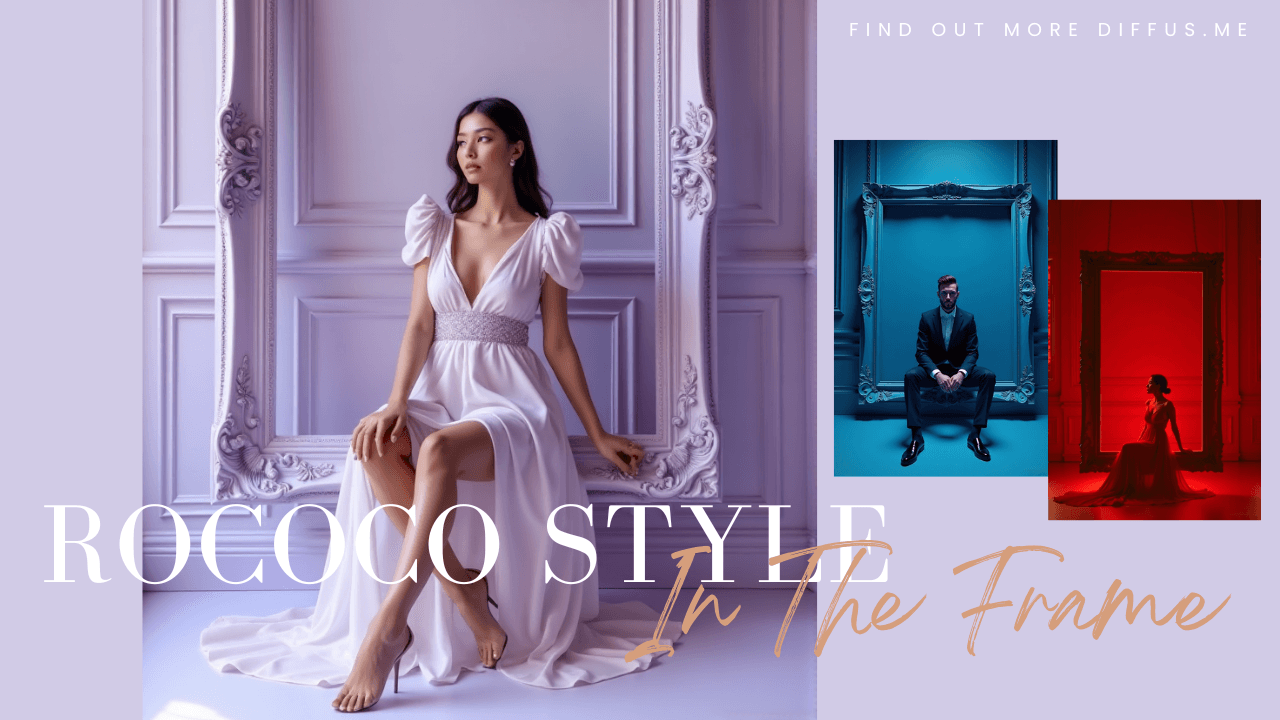
This guide shows you how to create an elegant, high-fashion portrait using the Diffus Image Generator.
You’ll learn how to use the given prompt, how to adjust it for your own character and color theme, and how to write similar cinematic portrait prompts with the same editorial aesthetic.
🌟 Important Note: For the most accurate generation results, you must use English prompts.
Step 1: Open the Diffus Image Generator
- Go to https://diffus.me.
- Log in to your account (or create one if you’re new).
- On the main dashboard, click Image Generator.
- You’ll see a text input box for prompts and an option to set your image style, ratio, and resolution.
Step 2: Paste the Prompt
Copy and paste the full prompt below into the prompt field:
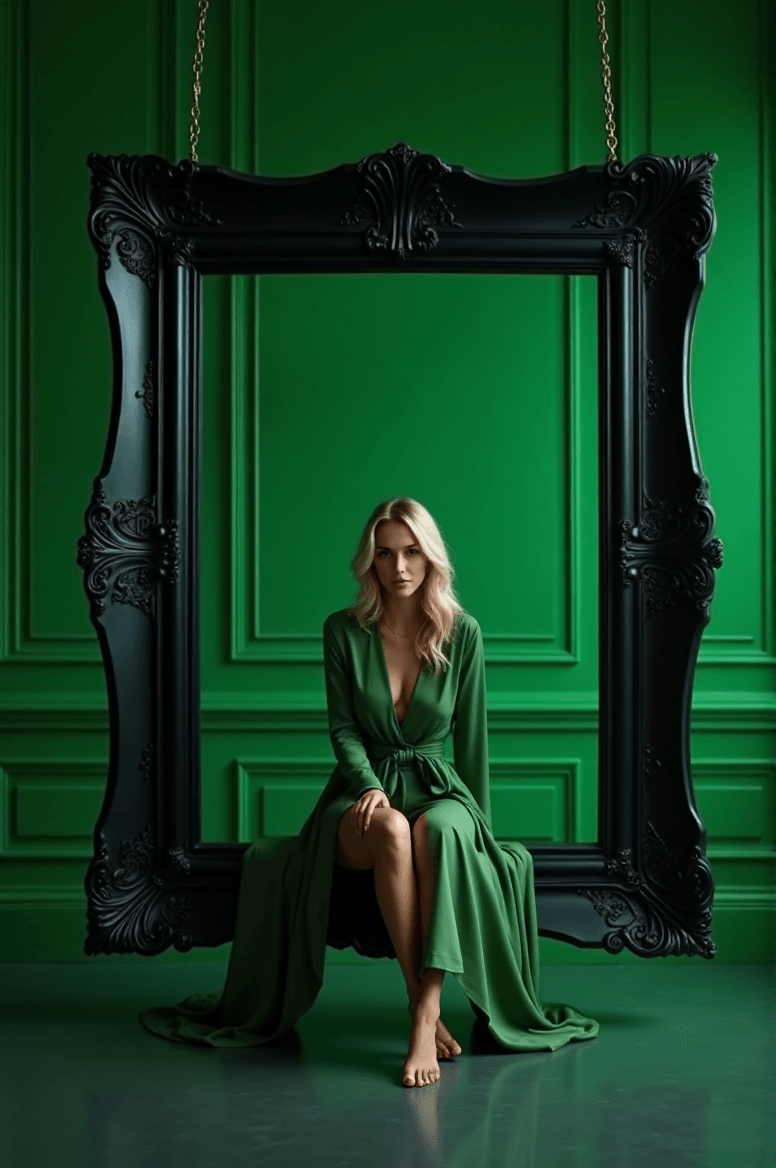
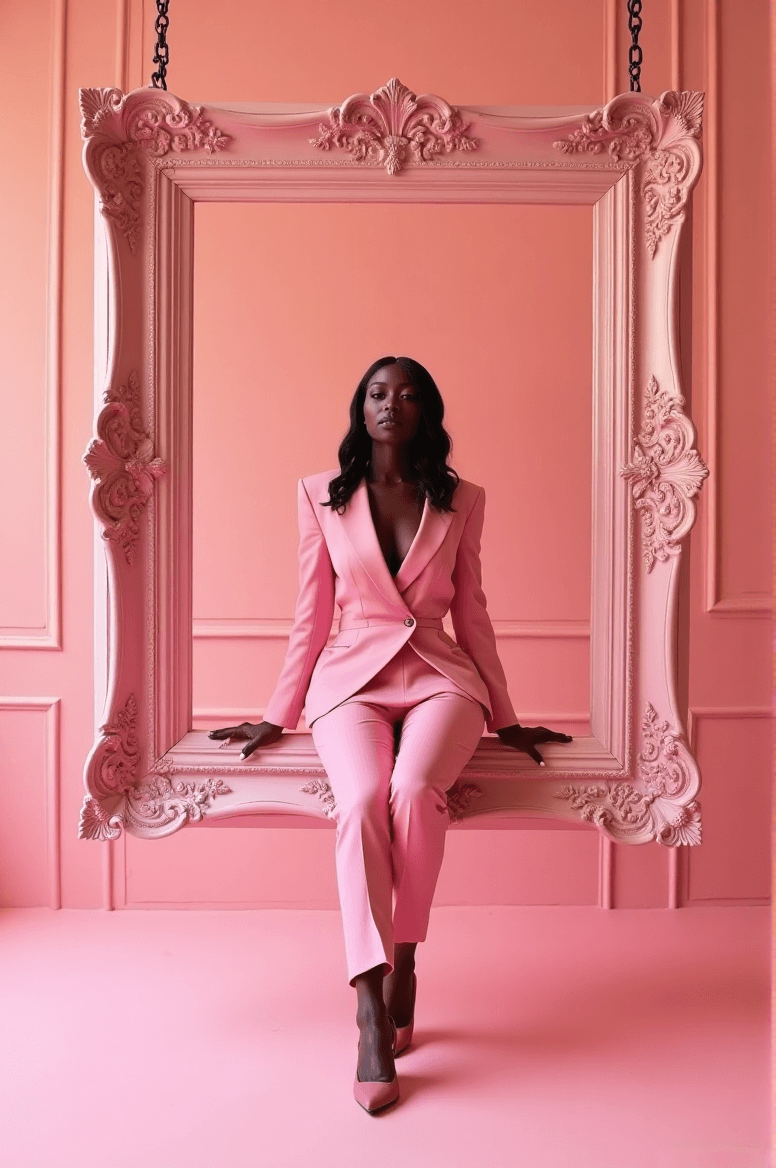
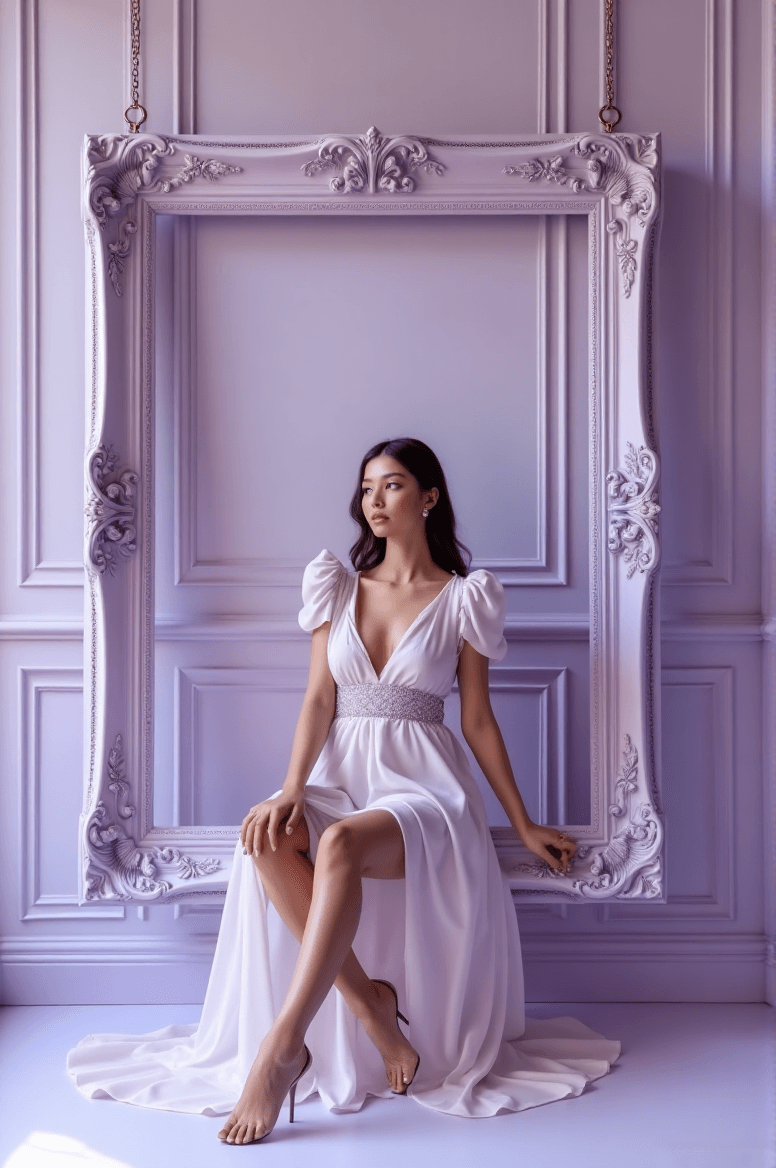
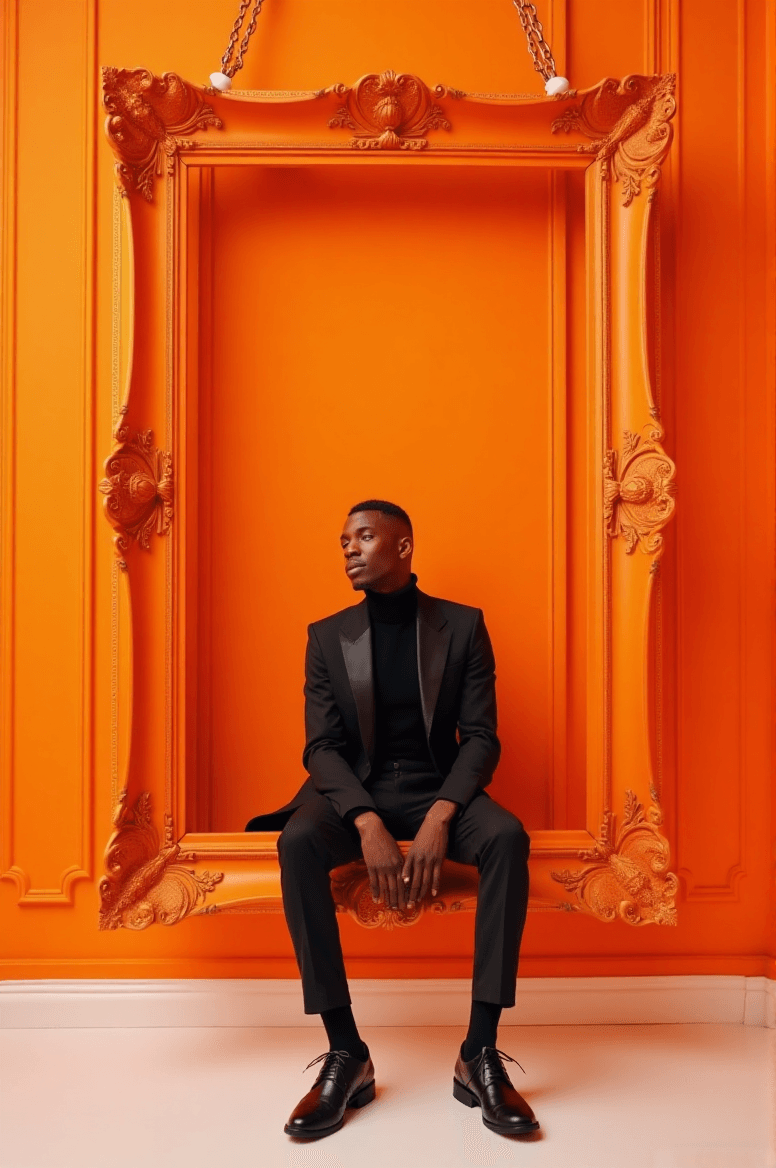
A luxurious high-fashion portrait of [CHARACTER DESCRIPTION] sitting gracefully on the inner lower edge of a large ornate rectangular picture frame, subtly suspended slightly above the floor by short hooks/chains at the top edge. The frame is perfectly level and floating with a visible gap from the floor. The entire scene follows a refined [COLOR THEME] monochromatic palette. Frame: • Ornate Baroque / Rococo rectangular frame • Painted in [FRAME COLOR & FINISH] to match or tastefully contrast the palette Environment: • Background: elegant studio wall with classic molded paneling in [COLOR], harmonized with the chromatic theme • Floor: slightly reflective surface in [FLOOR COLOR], same tone family for cohesive luxury aesthetics Lighting: • High-key cinematic fashion lighting • Soft diffused glow on the subject and frame • Gentle rim-light for clean silhouette separation Camera: • Symmetrical centered full-body portrait • Clean editorial fashion composition • 8K ultra-detailed premium campaign quality Style tags: monochromatic | ornate suspended frame | cinematic studio fashion | luxury editorial aesthetic
Step 3: Customize the Variables and Generate
Replace the bracketed parts with your own details. For example:
- [CHARACTER DESCRIPTION] → “a confident woman in a black silk gown”
- [COLOR THEME] → “emerald green”
- [FRAME COLOR & FINISH] → “antique gold with satin finish”
- [COLOR] → same or slightly lighter tone (e.g., “pale green panel wall”)
- [FLOOR COLOR] → “polished marble green”
Click Generate and wait 30–60 seconds.
🟢 Example:
A luxurious high-fashion portrait of a confident woman in a black silk gown sitting gracefully on the inner lower edge of a large ornate rectangular picture frame, subtly suspended slightly above the floor by short hooks/chains at the top edge. The frame is perfectly level and floating with a visible gap from the floor. The entire scene follows a refined emerald green monochromatic palette.
Frame:
• Ornate Baroque / Rococo rectangular frame
• Painted in antique gold with satin finish to match or tastefully contrast the palette
Environment:
• Background: elegant studio wall with classic molded paneling in pale green panel wall, harmonized with the chromatic theme
• Floor: slightly reflective surface in polished marble green, same tone family for cohesive luxury aesthetics
Lighting:
• High-key cinematic fashion lighting
• Soft diffused glow on the subject and frame
• Gentle rim-light for clean silhouette separation
Camera:
• Symmetrical centered full-body portrait
• Clean editorial fashion composition
• 8K ultra-detailed premium campaign quality
Style tags:
monochromatic | ornate suspended frame | cinematic studio fashion | luxury editorial aesthetic
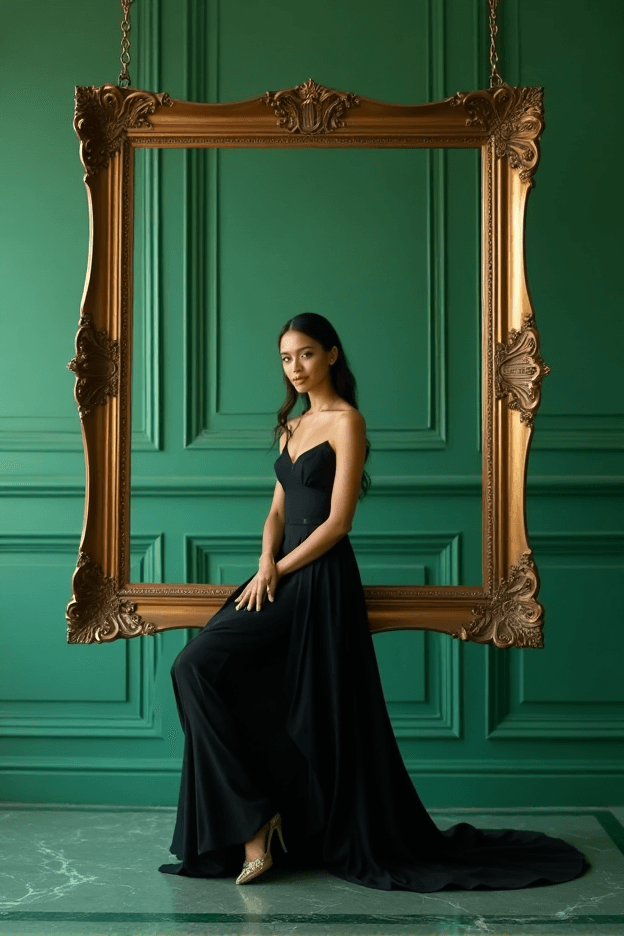
The more precisely you describe fabric, color tone, and lighting, the richer and more cinematic your output will be.
Step 4: Review and Refine
Your image should now show:
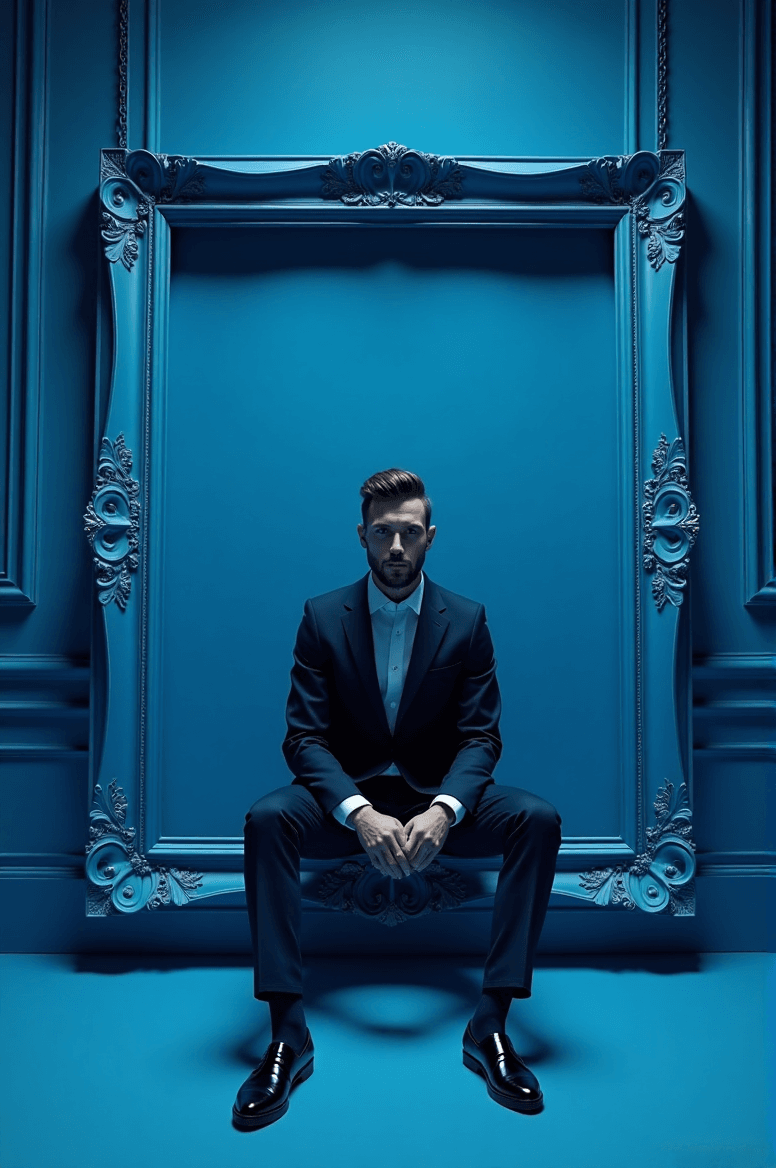
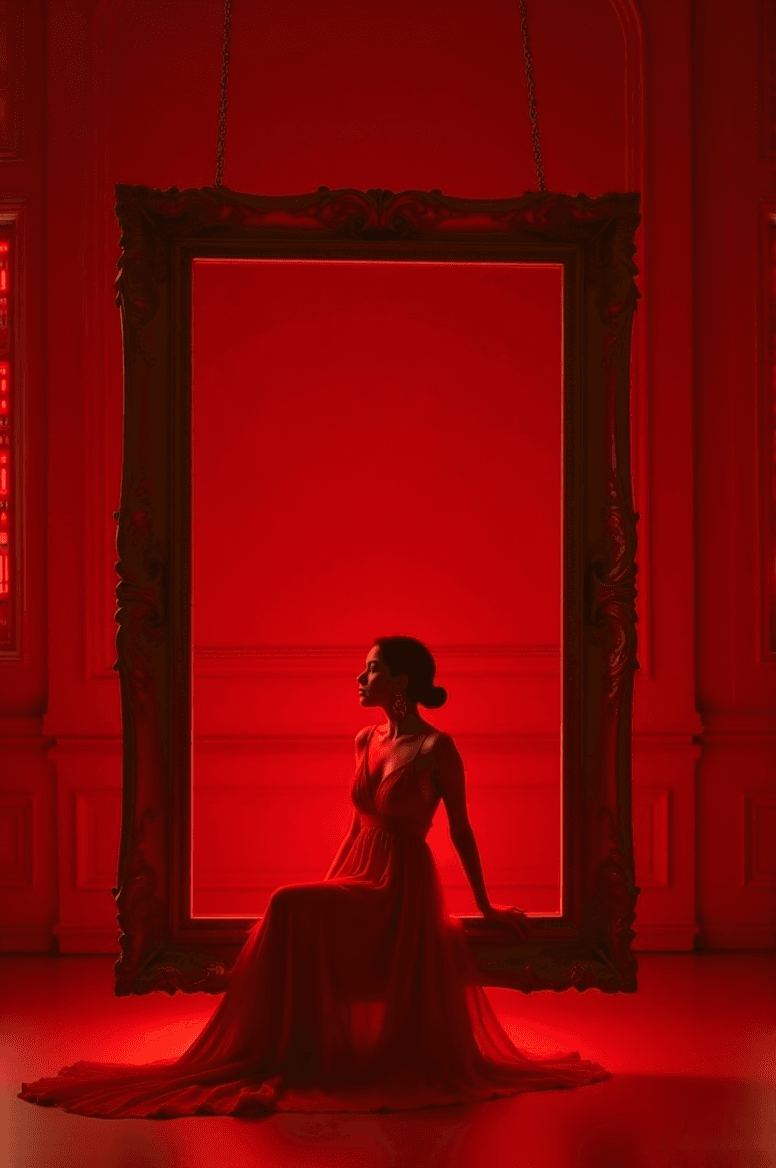
- The subject sitting inside a large ornate frame, suspended slightly above the ground
- Elegant monochromatic tones (color harmony throughout)
- Balanced cinematic light and shadow
- Editorial fashion campaign quality
If the result isn’t quite right, try:
- Changing the COLOR THEME (e.g., “pearl white,” “crimson red,” “midnight blue”)
- Rewording lighting intensity: “soft studio glow,” “dramatic high-key light,” etc.
- Adjusting style tags (e.g., add “Vogue editorial aesthetic” or “fine art photography”)
Step 5: Save and Showcase
When you’re satisfied:
- Click Download → choose PNG or JPG.
- If you love your result, you can click Upload to Gallery to share it with the Diffus community — others can view, comment, or remix your prompt.
Sharing your creation helps the community explore new prompt ideas and visual styles.
✨ Try it now inside the Diffus Image Generator!
And if you want to see the complete detailed tutorial with examples and tips, you can read the full version on the Diffus official site.